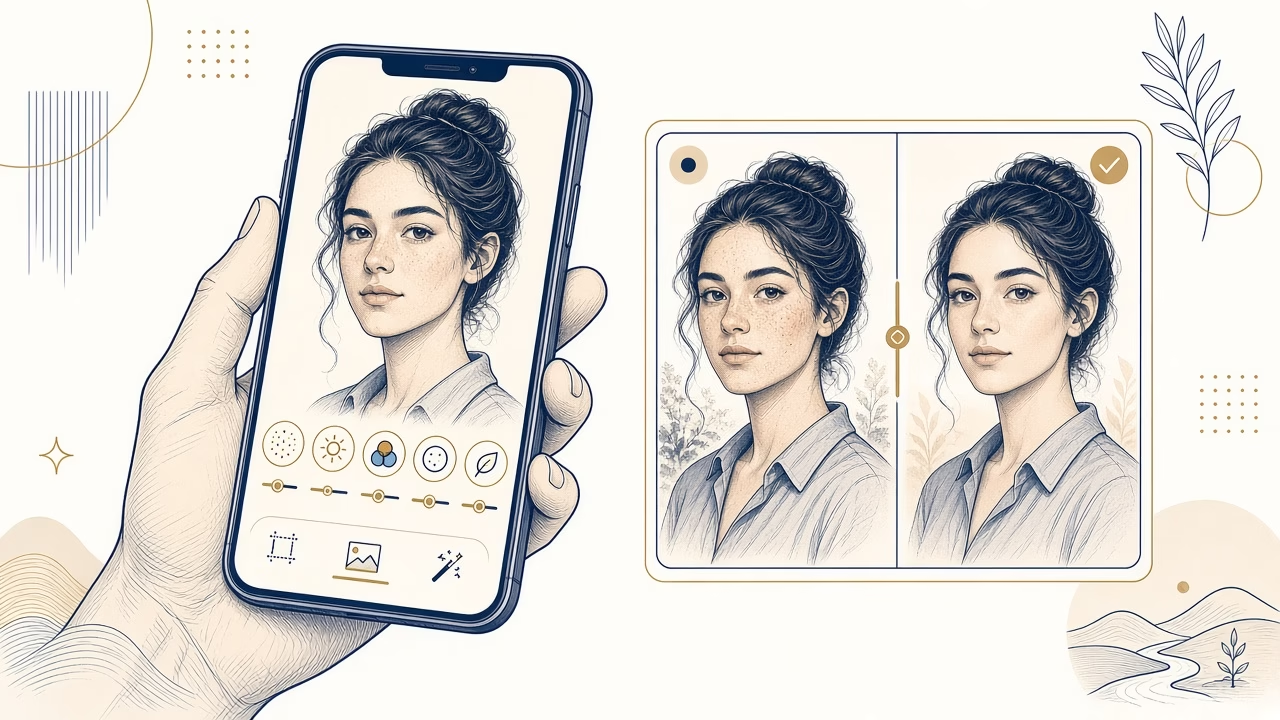
The right face-editing app is not the same for everyone. One person may want a subtle lighting correction for a portrait, another may want to remove a temporary blemish, and someone else may be building an eye-catching social post. The five apps below serve different purposes, so there is no absolute winner. Features, tool names, prices, trial terms, device requirements, and availability can change by version and country. Always check the current store listing and subscription terms before paying.
This comparison considers how natural an edit can look, the depth of manual control, workflow speed, creative range, and export quality. A filter that looks impressive on a small screen is not necessarily suitable for print or for a portrait that should still look truthful.
Facetune
Dedicated AI and manual face-retouch controls.
AirBrush
Quick one-tap retouching, skin, makeup and background tools.
FaceApp
Creative photorealistic transformations and filters.
Adobe Lightroom
Technical light, colour, masking and AI removal controls.
Picsart
AI retouch, creative designs, backgrounds, templates and collage.
The five apps and where each one fits
1. Facetune: detailed controls dedicated to faces
Facetune combines dedicated selfie and face tools with AI assistance and manual adjustments. It suits users who want to work locally on skin, teeth, hair, or small distractions instead of applying one broad change to the whole image. Excessive smoothing and reshaping quickly become visible. Many advanced capabilities are part of a subscription or premium offering. See Facetune for iOS, Facetune for Android, and the official product site for current details.
2. AirBrush: quick retouching with a simple workflow
AirBrush emphasizes an accessible, fast process with AI retouching, blemish and skin adjustments, makeup options, and background tools. Its one-tap workflow is convenient when you need to prepare an everyday photo without learning a complex editor. Lower automatic strength and inspect eyes, face edges, and skin texture. Premium features generally require a subscription. Official downloads are AirBrush for iOS and AirBrush for Android; check the official site for current product information.
3. FaceApp: photorealistic creative transformations
FaceApp is better suited to creative, photorealistic transformations than precise professional retouching with detailed manual masks. Age, hairstyle, and impression filters can produce convincing alternative versions of a portrait. That makes it interesting for experimentation, but less suitable when you need controlled corrections to individual small areas. Before uploading personal material, review the current privacy policy. Official listings are FaceApp for iOS and FaceApp for Android.
4. Adobe Lightroom: technical light and color correction
Adobe Lightroom is the strongest of these options for technical control of exposure, white balance, color, crop, and detail. Selective people masks can, depending on the version and file, assist with targeted adjustments, while premium Generative Remove is designed to remove unwanted elements. It is not a beauty-filter app, and its broader editing system takes more time to learn. Some AI features require an internet connection or subscription. See Lightroom for iOS, Lightroom for Android, and Adobe’s privacy policy.
5. Picsart: social designs and all-in-one creativity
Picsart works as an all-in-one photo and social-content editor. It includes AI Retouch, object and background tools, templates, and collage features, making it practical when a portrait will become part of a poster, story, or layered design. The wide range also makes its interface busier than a dedicated face editor, and several tools are premium. Check whether the free export in your chosen workflow adds a watermark before investing time in an edit. Official versions are Picsart for iOS and Picsart for Android. You can also review the privacy policy.
Choose by purpose, not by a universal ranking
For the most natural technical correction of light and color, Lightroom provides the deepest toolkit. For dedicated face control that combines manual and AI tools, Facetune is more specialized. For the easiest quick retouch, AirBrush offers a streamlined one-tap approach. For creative transformation, FaceApp focuses on convincing filters. For social designs, collages, and templates, Picsart connects retouching with the complete composition.
AI assistance versus manual tools
AI can speed up face selections, masks, object removal, and general suggestions. It does not always know whether a line is a wrinkle, a shadow, a strand of hair, or a feature that should remain. Manual tools provide better control over strength and boundaries. A reliable approach is to use AI for a first pass, then reduce the effect or refine the mask.
An 8-step recipe for natural retouching
- Duplicate the original. Keep the untouched camera file so you can return to it or make a different version later.
- Crop and straighten. Correct the horizon, framing, and distracting edges before working on the face.
- Set exposure and white balance. Aim for believable skin color without clipped highlights or blocked shadows.
- Remove blemishes selectively. Touch only temporary spots or marks rather than permanent identifying features.
- Reduce temporary shadows. Gently lift signs of fatigue or uneven lighting without flattening the face’s natural structure.
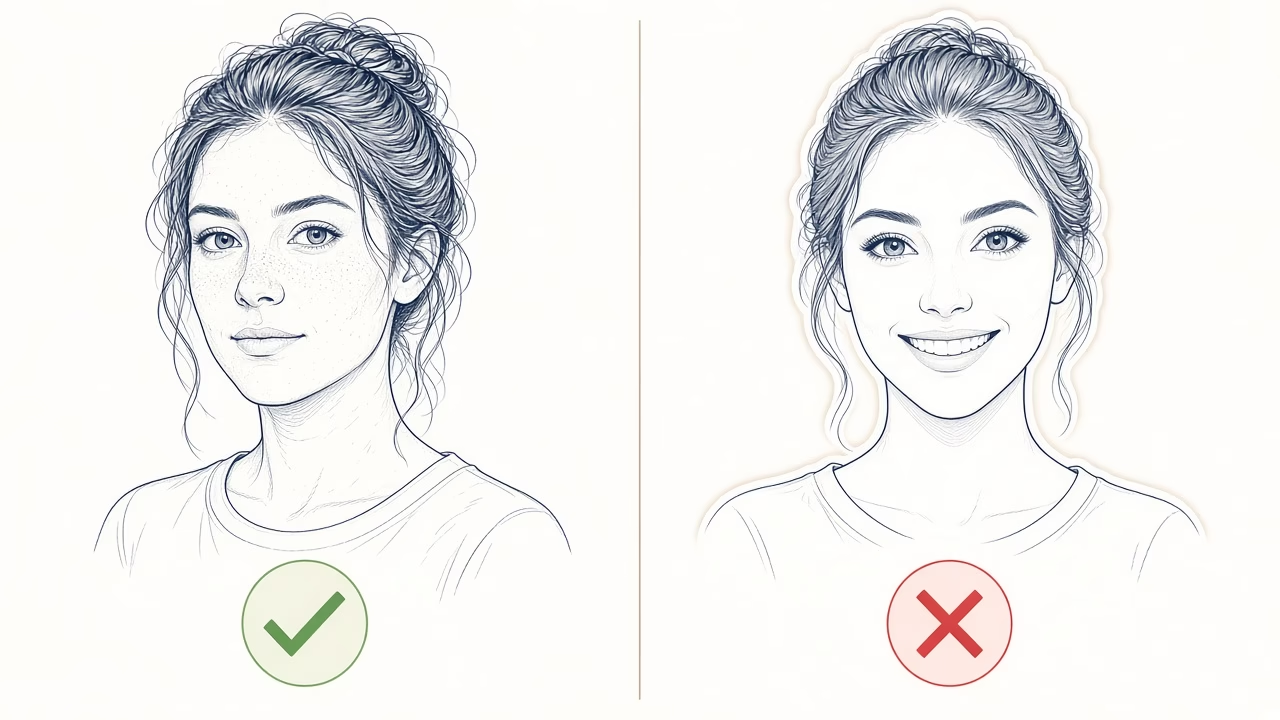
- Preserve pores and lines. Lower smoothing until real skin texture remains visible.
- Compare before and after at 100%. Inspect halos, repeating patterns, eyes, hair, and the outline of the face.
- Export at full resolution. Save a separate final file using a high-quality setting.
RAW, HEIC, JPEG, color, and export resolution
RAW files retain more information for recovering highlights and shadows, but every app does not support them equally well. HEIC is efficient and common on phones, although a service or print lab may request JPEG. JPEG is widely compatible, but repeated saves can gradually reduce quality. For ordinary sharing and most print workflows, sRGB is the safest color space unless your lab specifies a different profile.
Choose original dimensions or the maximum available export resolution and avoid using screenshots. Send the image as a document, file link, or through a service that does not compress it, because many messaging apps automatically reduce dimensions and quality. For a large print, inspect the full-size result and ask the printer for its file requirements. AI enlargement cannot guarantee authentic detail when the source is very small, heavily compressed, or out of focus.
Privacy, consent, and sensitive images
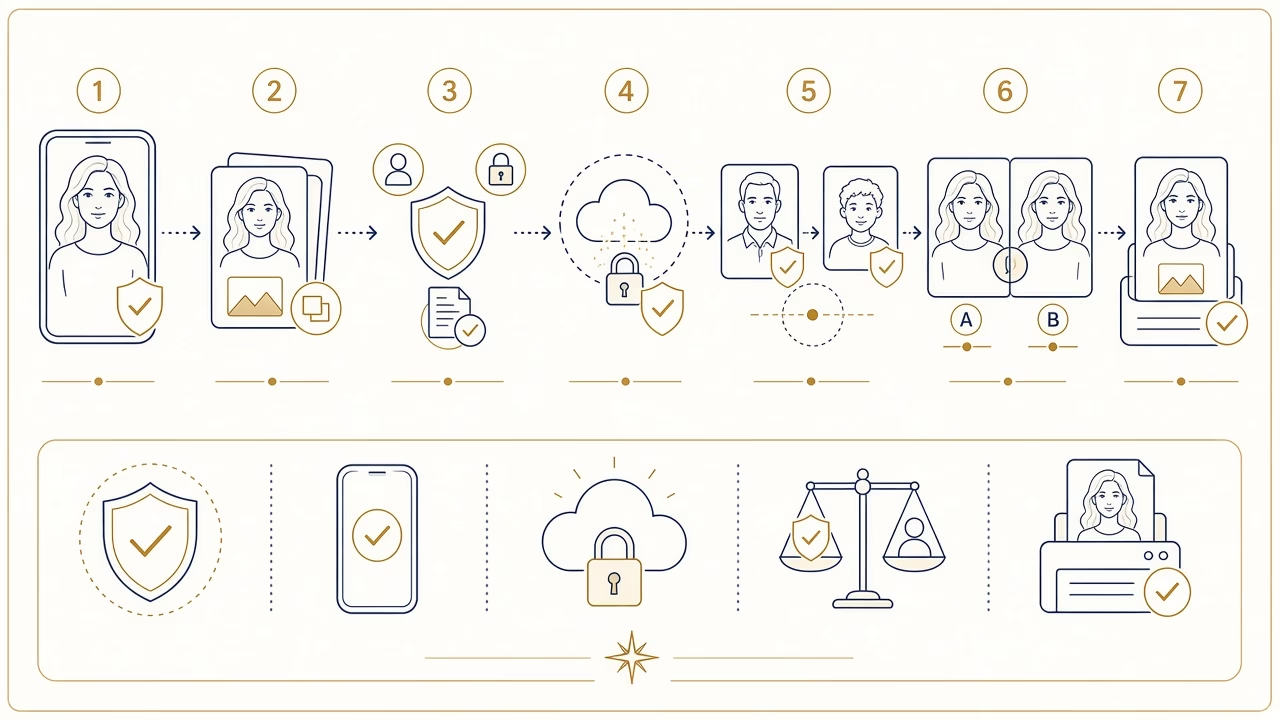
Get consent before altering or publishing another person’s face, especially when the change could affect how others perceive them. For children, minimize data collection and sharing, and avoid cloud services unless a parent or guardian understands the use. Do not upload medical, intimate, confidential workplace, or otherwise sensitive images without a compelling reason and appropriate permission.
Some AI tools process images on remote servers. Review the privacy policy, retention period, deletion choices, and whether uploaded material may be used to improve models. Grant only necessary permissions: access to selected photos is preferable to the entire library when the operating system and app provide that choice. Remove permissions that are no longer needed.
No app should be used to alter an official ID, passport, or myPhoto image beyond what the applicable rules expressly permit. Requirements for backgrounds, dimensions, facial appearance, and allowed corrections are specific. Follow the responsible authority’s instructions or use a certified photographer instead of assuming that a visually subtle edit is acceptable.
Subscriptions, watermarks, print quality, and disclosure
Before starting a trial, note when it becomes a paid subscription, the amount and billing frequency, and how to cancel through the App Store or Google Play. Deleting an app does not necessarily stop auto-renewal. Check which tools, export sizes, or file types are premium and whether your selected workflow adds a watermark before spending time on the edit.
For personal retouching, a sensible aim is a polished version of a real moment rather than a different face. When a creative alteration is substantial and the context could mislead viewers, clearly disclosing that AI was used is the responsible choice. Disclosure matters especially for journalistic, commercial, competition, documentary, or evidentiary material. For print, retain the original and your full-resolution final version so a compressed social copy never becomes the only master file.
Frequently asked questions
Which app gives the most natural result?
Lightroom offers strong control for technical light and color corrections. For face-specific retouching, Facetune or AirBrush can look natural at low strength. Method and restraint matter more than the app name.
Can I make a good edit for free?
Basic features may be free, but limits change. Check premium tools, export resolution, advertisements, and watermarks in the current version before beginning an important project.
Should I edit RAW instead of JPEG?
RAW provides more latitude for exposure and color. JPEG is simpler and more compatible. Choose RAW when the app handles it properly and the photo needs meaningful technical correction.
Why does retouched skin look plastic?
Smoothing is probably too strong or has removed local contrast. Reduce the effect, restore pores and natural lines, and inspect the image at 100% magnification.
Do AI editing tools need internet access?
Some features run on the device, while others send data to cloud servers. Behavior can differ by tool and version, so check the app information and current privacy policy.
How do I avoid messaging compression?
Send the photo as a file or document, use a download link, or select an original-quality option where available. Always retain the full-resolution exported file separately.
Is it safe to edit photos of children?
Obtain parental consent, minimize sharing, and examine cloud processing and retention carefully. For sensitive material, prefer a controlled local workflow whenever possible.
Can I retouch a passport or myPhoto image?
Not beyond corrections explicitly allowed by the relevant rules. Do not reshape features, change geometry, or alter other official-image elements; follow the current specifications and certified photographer’s guidance.
What happens if I cancel a free trial?
Deadlines and access after cancellation vary. Review the terms in your store subscription page, cancel through the stated process, and retain confirmation.
Which file format is best for printing?
A high-quality, full-resolution JPEG in sRGB is a practical default. For demanding print work, ask the lab for its preferred format, color profile, dimensions, and resolution.
Follow us



Print your edited portrait online with our application
Keep the full-resolution file, choose a print size and submit it without messaging-app compression.
Need help preparing your photo?
For file preparation and printing options, contact FotoPanorama.